Showing posts with label CVS. Show all posts

Monday, May 20, 2013

Mirroring CVS server to a backup server


The last step in setting up CVS is to set up the mirror server for disaster recovery, when there are any unexpected event happen, then we can switch to the mirror server immediately without affecting our development.
Steps: 1. create rsync script in the CVS mirror server
  • Install rsync if not already installed
  • write the following rsync script and save it in mirror-cvs.sh
  • rsync -vaz --delete [source-server-ip]:[/path/to/cvs/repo] [/local/path/to/cvs/repo]
2. schedule the rsync script every 30 minutes with the following script
*/30 * * * * /path/to/script/directory/mirror-cvs.sh
for more information about cronjob, please refer here.

3. setup ssh to login without passwd
  • create public and private keys with the following script
ssh-keygen
  • copy the public key to remote host with the following script
ssh-copy-id –I ~/.ssh/id_rsa.pub remote host

Done!!

Monday, May 13, 2013

Team Synchronization with CVS in Java Delopment

Team synchronization is very important is software development to make sure the team are working on the same stuffs and version.
at this moment, CVS is chosen to do the synchronization, more details about CVS please refer wikipedia.
The reason the title only for Java Development because Eclipse is chosen as the CVS client.

A) CVS
  1. Set up CVS sever in Linux
  2. Set up CVS ACL for access right control (coming soon)
  3. Set up CVS client with Eclipse
  4. Sharing project(s) with Eclipse
  5. Checkout project with Eclipse
  6. CVS Branching
  7. Switching CVS repository for a Eclipse workspace.
  8. Mirroring the CVS server

B) SVN
  1. Set up SVN server in Linux
  2. Set up CVS client with Eclipse
  3. Sharing project(s) with Eclipse
  4. Checkout project from SVN server with Eclipse
  5. SVN Branching

C) eGit
  1. Set up eGit server in Linux
  2. Set up eGit client with Eclipse
  3. Sharing project(s) with Eclipse
  4. Checkout project from eGit server with Eclipse
  5. eGit Branching

Done!!


How to switch CVS repository in eclipse

<< Back to CVS tutorial home

Workspace's CVS repository could be changed.
Normally due to upgrading the CVS machine or moving the CVS machine to another data center and hardware failure on the original CVS machine.

After the server migration completed or pointing to the CVS backup server due to hardware failure, configuration from CVS client is pretty simple.

Steps:
1. Window > Open Perspective > Other... > CVS Repository Exploring > OK
Choosing CVS Repository Exploring from perspective

Wednesday, May 1, 2013

How to create CVS branch with Eclipse

<< Back to CVS tutorial home

This is a tutorial to show the branching process in CVS server with Eclipse as the CVS client, and this is part Team Synchronization tutorial.

1. Window > Open perspective > Other... > CVS repository exploring > OK

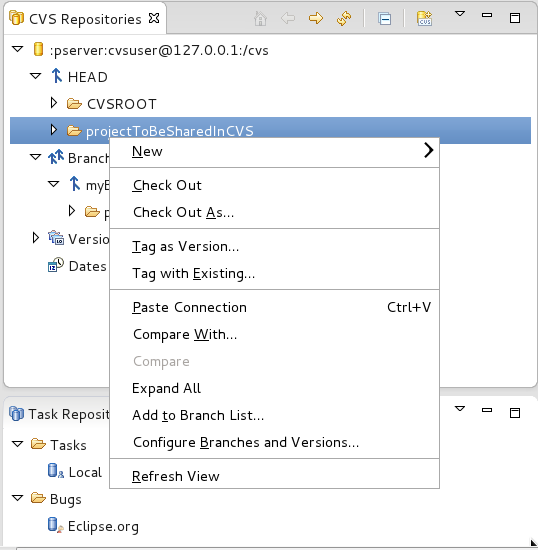
2. R-click on selected project(s) to branch > Add to branch list...
adding CVS branch

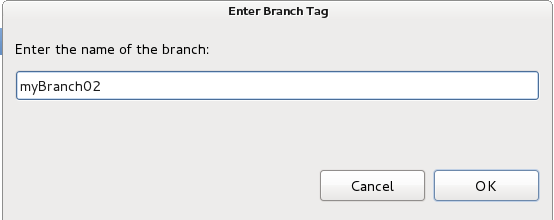
3. Enter a Branch name in the Branch Tag dialog > OK
enter new CVS branch name
    p/s: for existing branch, just copy the branch name into the text field.

Output:
new branch in CVS repository


<< Back to CVS tutorial home

Done!!


How to checkout project from CVS with Eclipse

<< Back to CVS tutorial home

This is a tutorial to show the checkout process from CVS server with Eclipse as the CVS client, and this is part Team Synchronization tutorial.

1. File > New > Project... > CVS > Projects from CVS > Next
select Projects from CVS

2. Use existing repository location, choose preferred repository > Next
choose Use existing repository location
    If there are no existing repository, choose Create a new reposity location.

3. Use an existing module, choose one or more modules > Finish, or Next to choose branch other than HEAD.
choose 1 or more project from the module list

4. Next > Next > Refresh Tags > Choose preferred Branch or Version > Finish.
Choose preferred branch or version

5. Wait for the checkout and available to use in workspace.


<< Back to CVS tutorial home

Done!!

Sunday, April 21, 2013

How to share project(s) into CVS with Eclipse

<< Back to CVS tutorial home

This article is part of the CVS Team Synchronization with Eclipse.
The objective of this article is to show how to share a new project into CVS with Eclipse.

1. Start Eclipse
2. R-click on the Eclipse that is going to share into CVS.
3. Team > Share Project...
4. Select CVS as Repository Type > Next
Choosing repository type

How to setup CVS client with Eclipse

<< Back to CVS tutorial home

This article shows how to connect to CVS server with Eclipse as the CVS client where CVS client already pre-installed in the Eclipse bundled, we just need to configure and use it.

1. Start Eclipse
2. Window > Open Perspective > Other... > CVS Repository Exploring > OK

3. Click on the Add CVS Repository icon.
CVS Repository dialog

LinkWithin

Related Posts Plugin for WordPress, Blogger...